Printer Setup Guide
This guide will walk you through the process of setting up your printer with GreenlineDCS.
Prerequisites
- A compatible printer (e.g., Star CloudPRINT)
- Manager access to GreenlineDCS
- Printer's MAC address
- CPUtil (for Star CloudPRINT devices)
Step 1: Connect Printer to Your Device
For detailed instructions on connecting your printer to your device, refer to the manufacturer's documentation:
Step 2: Register the Printer in GreenlineDCS
Log in to GreenlineDCS as a Manager.
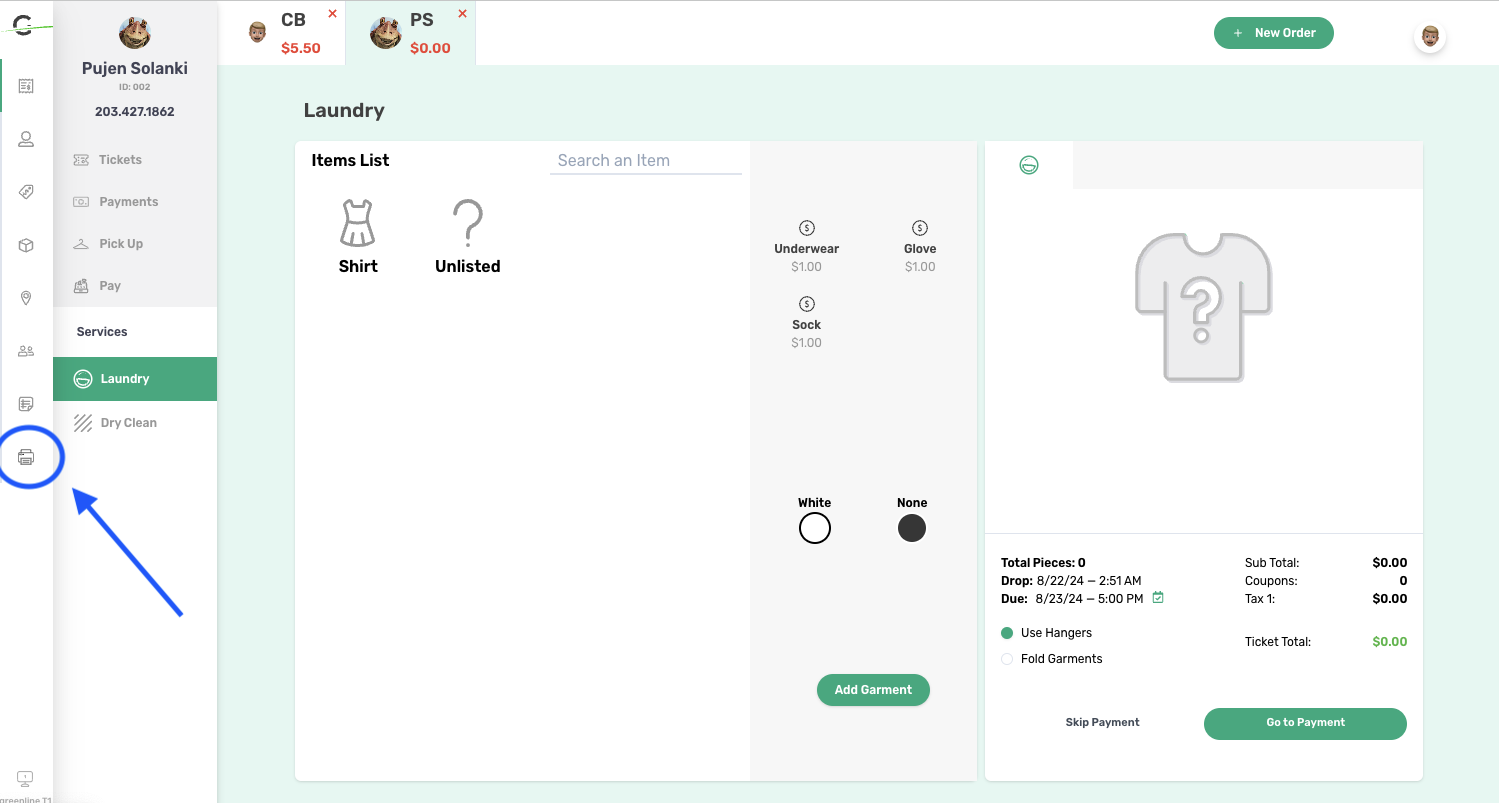
Navigate to the printer management page by clicking the printer icon in the side menu.
Click the "Add Printer" button in the upper left corner.
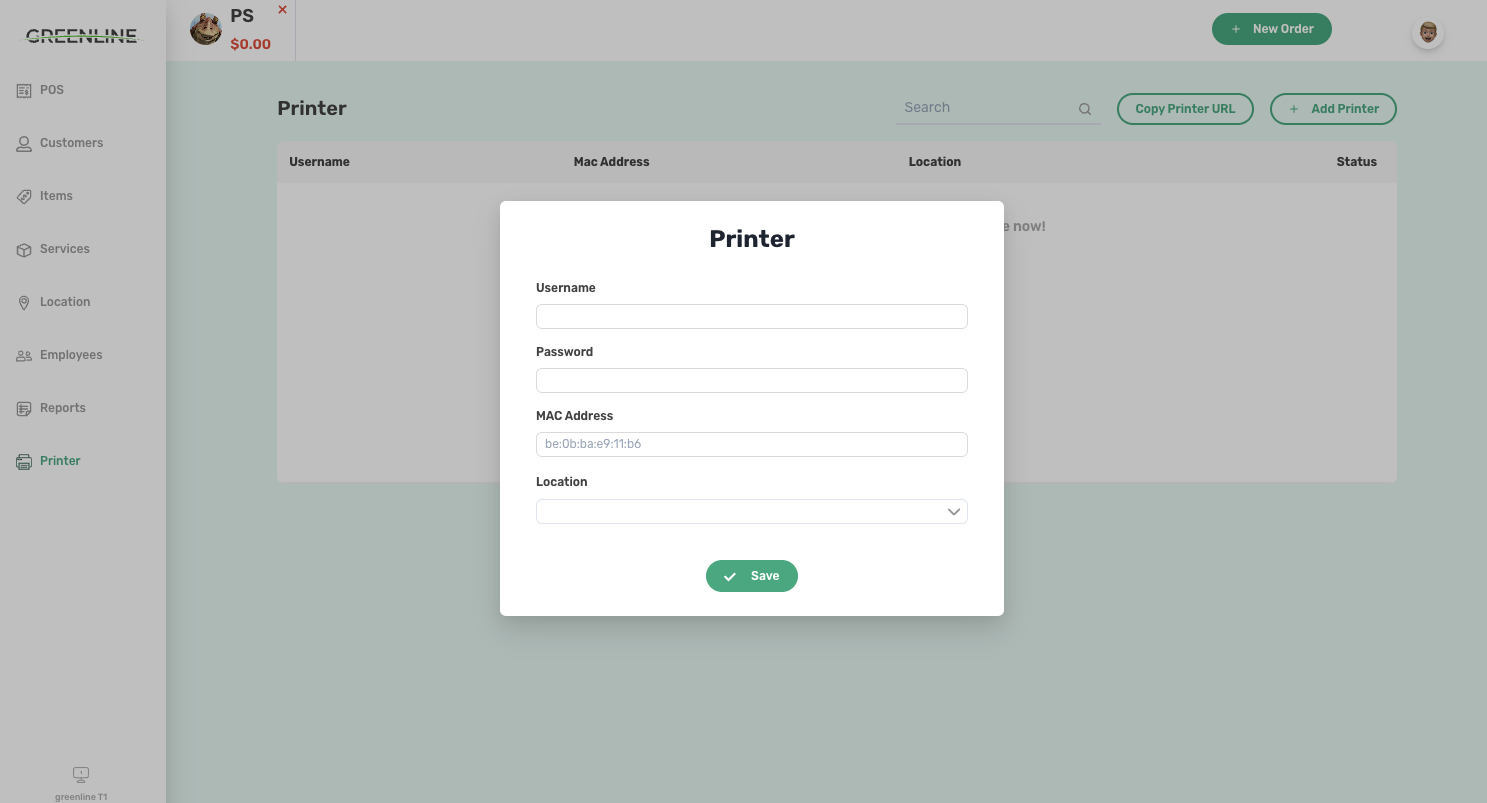
Fill in the printer information:
- MAC address (required, found on the back of the printer)
- Username and password (optional, only if specified in printer configuration)
Click "Save" to register the printer.
Step 3: Install CPUtil (for Star CloudPRINT)
For Star CloudPRINT devices, you'll need to install CPUtil, a utility for managing CloudPRNT printers.
Download the appropriate CPUtil binary for your system:
Install the downloaded binary according to your operating system's instructions.
Note: If you need to customize CPUtil, you can build it from source. It's a .NET Core 2.0 Console application that can be compiled on any platform with a .NET Core 2.0 or later SDK.
Step 4: Assign Printer URL to Devices (for Star CloudPRINT)
For Star CloudPRINT devices, you need to assign a Printer URL to enable communication between the printer and the application.
- Go to the printer list page.
- Click the "Copy Printer URL" button in the upper left corner.
- Use this URL to configure your Star CloudPRINT device.
For a visual guide, watch the Star Cloud Printing Demo Setup video.
Troubleshooting
If you encounter any issues during the setup process, please check the following:
- Ensure the printer is powered on and connected to the same network as your device.
- Double-check the MAC address entered in GreenlineDCS.
- Verify that the Printer URL is correctly entered in the Star CloudPRINT configuration.
For further assistance, please contact our support team.